PokéBonk Not Loading? Browser and WebGL Troubleshooting
Troubleshoot PokéBonk connection errors, a missing 3D scene, lag and aiming problems with a symptom checklist that protects your Guest session.
What should you check first?
Match the symptom before changing anything: a connection error, a missing 3D scene, lag and unexpected aiming behavior need different checks. Open the original English game directly. This wiki serves guides; a working wiki page does not establish that the game or its server is available.
Our October 17, 2026 desktop checks reached Beta v0.5.5 menus and early Classic play. This is an observed working session, not an uptime guarantee or a compatibility certification.
Symptom checklist: loading, black screen, lag or controls
On a narrow screen, swipe the table sideways to read every column. These are diagnostic next steps, not reproduced faults or guaranteed fixes.
| What you see | First check | What the result helps distinguish |
|---|---|---|
| Connection, DNS or certificate error before the page appears | Reopen the original address; record the exact error and time, then compare on another normal connection. | Reaching the menu on one connection narrows the problem; it does not prove a global outage. |
| Page text appears but the 3D scene is blank or black | Check JavaScript permissions and whether the browser/device can run WebGL. Compare in an up-to-date browser. | A profile or graphics restriction differs from the entire website failing to load. |
| The scene loads but movement looks choppy | Compare one Graphics quality setting at a time; use the game’s Show FPS option. | This checks rendering performance instead of assuming a connection failure. |
| Attacks or camera direction feel wrong | Read Settings → Controls and confirm Automatic or Manual. | Manual follows camera direction; Automatic targets the closest enemy, according to the menu. |
| A private window shows a new Guest | Return to the original browser/profile before changing account or save settings. | Separate browser data can mean a different Guest identity, not a deleted save. |
| The menu reports it is not connected to the server | Record that message and retry later before resetting the browser. | A server connection symptom is different from a missing 3D renderer. |
How do you check JavaScript and WebGL?
The original page states that JavaScript and WebGL are required. If you normally block scripts, review permissions for the original game domain. A loaded page shell alone does not demonstrate a working renderer.
MDN’s WebGL overview explains that WebGL depends on both browser support and compatible device graphics. If JavaScript works but the scene does not, review the browser’s graphics or hardware-acceleration settings through its own help. Record the current setting before changing it, and compare the result.
Trying a separate browser or test window can isolate a profile-specific problem. It does not move your account or prove that your original Guest progress is gone. Do not bypass a certificate warning to continue the test.
Which graphics settings can you compare?
We directly checked Settings → Graphics in Beta v0.5.5. The menu offers High, Medium and Low quality, a field-of-view slider, screen shake, effects opacity, Reduce flashes and Show FPS. The menu describes Low as the performance-oriented option; we have not measured its frame-rate improvement.
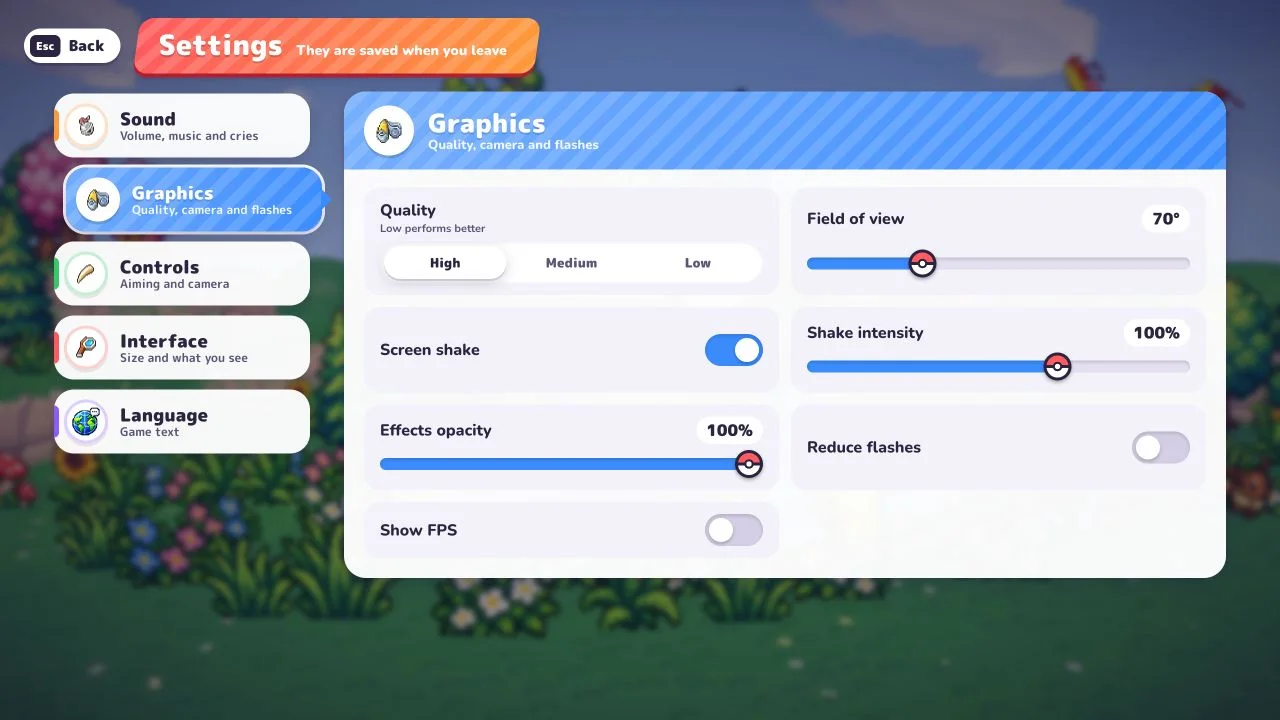
Use a small, repeatable check:
- Note the current quality and open the same region, mode and difficulty you were using.
- Enable Show FPS if you want a visible comparison. Observe one short section.
- Change only quality, then compare another similar section; keep other settings unchanged.
- Restore the original setting if it does not help. Record the browser, device and conditions when reporting a problem.
Different scenes, enemy counts and weather can change the result. An FPS number is not a network-latency measurement. We inspected the settings and exercised aiming changes; we did not reproduce a black-screen fault or run a graphics benchmark.
Why should you preserve the original Guest session?
The game’s Guest entry says progress is saved on the server and tied to the device. That does not make browser identity disposable: a new profile or private window may not identify the same Guest. Keep the original session available while testing.
Clearing cookies or site storage is not a first troubleshooting step. Review the original game’s account/save options before doing so. This wiki cannot restore game accounts or saves.
What should you include in a bug report?
The original game has a Report button in its main menu and pause panel. Include the original game URL, Beta version, browser/version, operating system/device, time, exact symptom, steps to reproduce and settings already compared. A screenshot of an error is more useful than “it does not work.” Exclude passwords and account tokens.
Use Contact for a mistake in our guide. If the game now reaches its menu, continue with the first-run guide or desktop controls and aiming. Check the version comparison if your menus differ from ours.
Sources and verification
Checked October 17, 2026 against Charcher’s English game, menu Beta v0.5.5: Graphics/Controls settings, server-connection labels, pause panel and early desktop Classic play. Graphics options were inspected; no controlled FPS benchmark, outage reproduction, save recovery or mobile test is claimed. The general browser/graphics explanation is supported by the linked MDN reference.
Related Articles
guides
PokéBonk Controls: Keyboard, Camera and Aiming
Find PokéBonk’s desktop keys for movement, jump, slide, Ultimate and pause. Compare Automatic and Manual aiming with checked setup steps.
guides
PokéBonk Classic vs Survival: Modes and Difficulty
Compare PokéBonk Classic and Survival menu descriptions, zones, guardians, milestones and difficulty options before you start a run.
guides
How to Play PokéBonk: Beginner Guide
Start the original PokéBonk in your browser: enter as a Guest, choose a starter, select Classic or Survival and prepare your first Normal run.
Was this helpful?
Thanks for the feedback!